Screen Recording for Remote Onboarding: How to Train New Hires Without Scheduling 10 Meetings
Stop repeating the same onboarding calls every quarter. Learn how to build a recording library that trains new remote hires faster — without filling anyone's calendar.
Zenrecap Team
June 8, 2026 · 14 min read
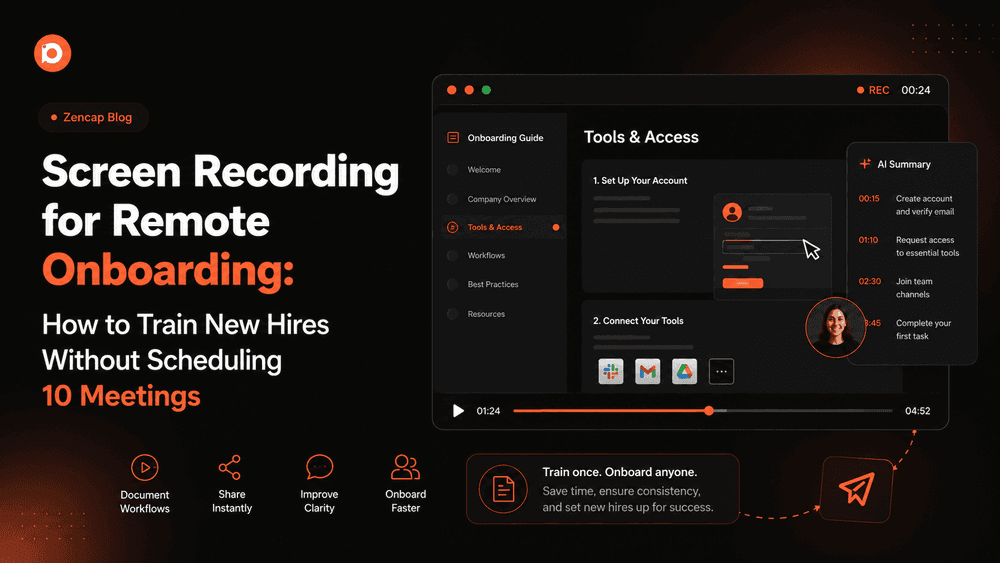
Onboarding a new remote hire used to look like this: a shared Google Doc with bullet points nobody reads, a Notion wiki that's six months out of date, and a calendar blocked solid with "intro to X" meetings for the first two weeks.
By day 10, the new hire is overwhelmed. By day 30, they're still asking questions that should have been answered in week one. And whoever onboarded them has spent 12+ hours in calls that covered the same ground they'll have to cover again next quarter when the next person joins.
Screen recordings fix most of this. Not all of it — some onboarding genuinely needs a real conversation. But the majority of what gets scheduled as a meeting in those first two weeks is actually a walkthrough, a process explanation, or a "here's how we do things" monologue that works better as a recording people can watch, pause, rewatch, and search.
This guide covers what to record, how to structure it, and how to make a remote onboarding library that new hires actually use.
Why Remote Onboarding Breaks Down
In a physical office, onboarding happens through proximity. A new hire sits next to someone, watches them work, asks questions as they come up, and absorbs context informally throughout the day. It's not perfect, but the friction is low.
Remote onboarding loses all of that ambient transfer. Everything that would have been picked up by osmosis now has to be intentionally communicated — which means either someone takes the time to write it all down, or it gets scheduled as a call.
Most teams choose calls because they're faster to schedule than to document. And it works well enough for the first hire. By the fifth hire, the same person is repeating the same walkthrough for the fifth time. By the tenth, the onboarding quality depends entirely on who's available to do the call, when they can fit it, and how thorough they feel like being that day.
This is the core problem screen recording solves: you do the walkthrough once, record it well, and it works the same way for every new hire, every time.
What Screen Recordings Change About Onboarding
When you replace a live walkthrough with a recording, a few things change — all of them in the right direction.
New hires can go at their own pace. A live walkthrough is paced by the presenter. If a new hire needs 30 seconds to process something, they've already missed the next part. With a recording, they pause when they need to, rewatch the sections that are new to them, and move on when they're ready.
They can return to it. "How do we handle X again?" Two weeks after onboarding, a new hire has forgotten half of what was covered. With recordings, they go back and rewatch. With meetings, they either ask again (wasting someone's time) or guess (and get it wrong).
You know what they've actually seen. When onboarding is a shared folder of recordings with shareable links, you can see when they were opened and which ones got watched. With a meeting, you're assuming they absorbed what was covered.
It scales to your next hire for free. The recording you make for one person works the same for the next person and the one after that. There's no additional cost to your team's time.
What to Record for Remote Onboarding
Not everything belongs in a recording. Here's a practical breakdown of what works well and what doesn't.
High value to record
Tool walkthroughs. "Here's how we use Notion / Linear / Slack / the design system." These are the most time-consuming things to explain live and the easiest to forget. A 5-minute recording of someone navigating the actual tool and explaining how the team uses it is worth ten times a written guide for the same thing.
Process explanations. "Here's how we run our sprint cycles," "here's how a design goes from brief to QA," "here's what happens when a bug comes in." These are the workflows new hires need to understand but often can't learn until they're in the middle of one. A recording gives them the context in advance.
Codebase or project walkthroughs. For technical hires, a 15-minute recording of a senior engineer walking through the architecture — what's in each folder, why it's structured that way, which areas have known issues — is invaluable. This kind of context is almost impossible to transfer in writing.
Company context. Why we made certain decisions, what we tried that didn't work, what the product looked like 18 months ago and why it changed. This isn't in any doc. The people who know it are the founders and early employees. A recording captures it before it's lost.
Recurring explanations. Every team has a question that every new hire asks. If someone on your team has explained how invoicing works, how support tickets get prioritized, or why a specific feature is built the way it is more than three times, that explanation belongs in a recording.
Lower value to record (keep these as real conversations)
- First day introductions and relationship building
- Role-specific expectation setting with a manager
- Anything where the new hire needs to ask questions in real time
- Performance and feedback conversations
How to Structure Your Onboarding Recording Library
A folder called "onboarding recordings" with 30 unlabeled videos is not a library. It's a pile. Structure matters.
A useful onboarding library is organized by when a new hire needs the information, not by topic.
Week 1: Orientation recordings The basics a person needs to function in their first week. Tools access, communication norms, where things live, how to ask for help. Keep these short — under 5 minutes each.
- Company overview (3-5 min)
- Primary tool walkthrough: where work is tracked (5-7 min)
- Communication norms: when to use Slack vs email vs docs (3-4 min)
- Where to find things: Notion / Drive / shared folder structure (4-5 min)
- First-week checklist explained (2-3 min)
Week 2: Role-specific recordings How the team and function actually operate. These are longer and more detailed.
- Team workflow walkthrough: how work moves from idea to done (8-12 min)
- Your role's primary tools in depth (7-10 min)
- How decisions get made and documented on this team (5-7 min)
- Key stakeholders and how to work with them (5-6 min)
Week 3 and beyond: Deep dives Context and background that makes work better once the basics are in place.
- Product context: why we built it this way (10-15 min)
- Codebase or project architecture (for technical roles) (15-20 min)
- Historical decisions: things we tried that didn't work (8-10 min)
- Company story and where we're going (10-12 min)
This structure means a new hire is never overwhelmed on day one with information they don't need yet, and never missing context they needed in week two.
How to Make Onboarding Recordings People Actually Watch
The quality of a recording doesn't depend on production value. It depends on whether the person watching gets what they need from it. These are the practices that make the difference.
State the purpose in the first 10 seconds. "This video covers how we use Linear for sprint planning — by the end you'll know how to pick up a ticket, move it through the workflow, and tag it for review." That sentence tells a new hire exactly what they're getting and roughly how long to focus. Don't make them sit through 30 seconds of scene-setting to figure out whether the video is relevant to them.
Keep individual recordings focused. One topic per recording. If you're explaining the design review process and you start going into how to set up Figma, stop and make a separate recording for Figma. Focused recordings are easier to navigate, easier to search, and easier to rewatch when someone needs a specific answer.
Talk through what you're doing, not just what's on screen. The most common mistake in screencasts is narrating the obvious: "Now I'm clicking here... and now I'm scrolling down..." Instead, explain the reasoning: "I'm going to the Projects tab here because this is where all active client work lives — you'll be in here every day." The context is what makes the recording valuable.
Use your cursor highlight. When you're pointing at something specific on screen, make sure it's visible. Zenrecap has a built-in cursor spotlight that puts a yellow highlight around your pointer. For onboarding recordings where you're walking through a tool, this ensures the viewer always knows where to look.
Draw on screen to emphasize key points. If there's an area of the interface that's particularly important — a button someone will click daily, a column that's easy to miss, a workflow step that's counterintuitive — draw on the screen while recording. A circle or arrow in the right place is clearer than any verbal explanation.
How Zenrecap Fits Into an Onboarding Workflow
Zenrecap is a free Chrome extension that makes creating and sharing onboarding recordings fast enough that people actually do it.
Recording takes one click. Open the extension, choose your recording area (full screen, a specific tab, or a window), toggle the microphone, and hit record. There's no setup, no configuration, and no separate app. The toolbar sits on the page while you record.
The share link is ready immediately. The moment you stop recording, Zenrecap uploads the video and generates a shareable link. Paste it into Notion, a Google Doc, a Slack message, or wherever your onboarding materials live. The person receiving it opens it in their browser — no account, no download.
Every recording gets an AI transcript. The transcript is synced to the video timeline. Click any line and the video jumps to that moment. For onboarding recordings where a new hire needs to find a specific step or rewatch a particular section, this is significantly faster than scrubbing. They can also search the transcript by keyword.
AI summaries tell them what to expect. Before a new hire presses play on a 10-minute architecture walkthrough, they read the 3-sentence AI summary and know whether this is the recording they need right now. This is especially useful when your library has grown to 20 or 30 recordings — people can scan summaries to find the right one.
AI chapters make longer recordings navigable. For anything over 5 minutes, Zenrecap automatically splits the recording into chapters with descriptive titles. A new hire watching a 15-minute codebase walkthrough can jump straight to "Authentication flow" or "Database schema" without watching the parts they don't need yet.
A Practical Onboarding Recording Checklist
If you're starting from scratch, this is a reasonable set of recordings to make in your first pass. Prioritize the ones that are currently happening as repeated live calls.
Company and culture
- How we communicate (Slack norms, response time expectations, async vs sync)
- Where company information lives (Notion, Drive, wiki — wherever it actually is)
- How we make and document decisions
Tools
- Primary project management tool (Linear, Jira, Asana, Notion, etc.)
- Communication tools and when to use them
- Any internal tools specific to your company
Role-specific workflows
- How work enters the team's queue
- How work moves through to completion
- How output is reviewed and approved
Technical context (for engineering and product roles)
- Codebase architecture overview
- Development workflow and conventions
- Known issues and areas of technical debt
Historical context
- Key product decisions and why they were made
- What we tried that didn't work
- Where we are now and what we're working toward
Start With One Recording
You don't need to build the whole library in a week. Start with the recording that would eliminate the most repeated live explanations on your team.
If you've given the same Notion walkthrough three times, record it once. If every new developer asks you about the codebase architecture, record a walkthrough. If onboarding calls are eating two full days of someone's time each quarter, that's the recording to start with.
Install Zenrecap, hit record, and do the walkthrough you'd normally do live. By the time you've done it once on camera, you've saved yourself from doing it live every time from now on.
Frequently Asked Questions
Can screen recordings really replace onboarding meetings?
For most of what gets scheduled as an onboarding meeting, yes. Tool walkthroughs, process explanations, codebase walkthroughs, and "how we do things" conversations all work better as recordings — they can be paused, rewound, and returned to. Real conversations are still worth keeping for introductions, expectation setting, and anything where a new hire needs to ask questions in real time. A good onboarding uses both.
How long should an onboarding recording be?
Depends on the topic. For tool walkthroughs and process explanations, 5 to 10 minutes is a good target. For deep dives like codebase architecture or product context, 15 to 20 minutes is fine as long as AI chapters are included so the viewer can navigate to the section they need. Avoid anything over 20 minutes without a very specific reason — those are usually better split into two recordings.
What equipment do I need to record onboarding videos?
Nothing beyond your laptop and a decent microphone. The built-in mic on most modern laptops is good enough for a screen recording where narration quality matters more than studio audio. If you're doing a lot of recordings, a USB headset or a simple external mic (anything in the $30 to $80 range) is a meaningful upgrade.
How do I share onboarding recordings with new hires?
The simplest approach is a shared Notion page or Google Doc organized by week, with links to each recording under descriptive headings. New hires work through it at their own pace. The AI summary on each Zenrecap recording helps them decide which ones to prioritize when they're short on time.
Should I update recordings when processes change?
Yes, but it's less work than updating a written doc. When a process changes, record a new short video explaining the change and update the link in your onboarding materials. If the change is significant, re-record the full walkthrough. The old version can be archived or deleted. Keep a note in each section of your onboarding doc of when recordings were last updated.
Does Zenrecap work without a Google account?
You can install the Chrome extension and record without signing in. Google sign-in is required if you want to save recordings to your account and access them later. For creating an onboarding library you'll share with your team, signing in is the right choice — it keeps all your recordings in one place.
What's the best way to organize a library of onboarding recordings?
Organize by when a new hire needs the information, not by topic. Week 1 recordings should cover everything needed to function in the first few days. Week 2 recordings go deeper on how the team actually operates. Week 3 and beyond covers context and background. Within each week, keep recordings short and focused on a single topic so new hires can find exactly what they need without watching everything.
Can new hires watch the recordings without creating an account?
Yes. Zenrecap recordings are shared via a link. The person watching opens the link in their browser and watches without signing in, downloading anything, or creating an account. This is one of the features that makes it practical for onboarding — you're not asking new hires to set up another tool before they can access the materials.
How is this different from recording a Zoom call?
A Zoom recording captures a live call, with all the dead time, digressions, and waiting that live calls involve. A Zenrecap recording is created intentionally — you're recording a focused walkthrough of exactly the topic you want to cover. The result is shorter, more watchable, and easier to navigate. Zenrecap also adds AI transcripts, summaries, and chapters automatically, which Zoom recordings don't have unless you use a separate transcription service.
How many onboarding recordings should I have?
There's no right number, but 10 to 20 focused recordings covering the most important onboarding topics is a practical starting point for most teams. More than that and new hires can feel overwhelmed. Fewer than 5 and you're probably still relying on live calls for things that would work better as recordings. Start with the 5 recordings that would eliminate the most repeated live explanations and build from there.