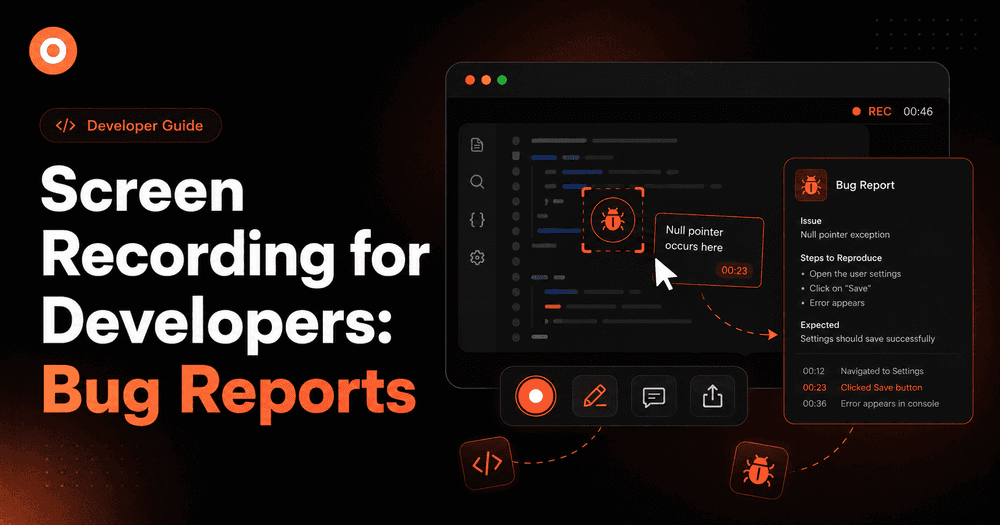
Screen Recording for Developers: Bug Reports
Text bug reports waste everyone's time. A 30-second screen recording with audio gives developers everything they need to reproduce and fix a bug — no follow-up questions required.
Zenrecap Team
May 22, 2026 · 12 min read
Screen Recording for Bug Reports: How Developers Get Fixes Faster
You've been there. A teammate sends a bug report that says something like "the button isn't working on the checkout page." Which button? What did they click before that? What browser? What did they expect to happen?
You send back three clarifying questions. They respond the next day. You ask two more. By the time you actually understand what broke, half the week is gone and the bug is still sitting in the backlog.
Text-based bug reports are slow. Screen recording fixes that.
This guide is for developers, QA engineers, and anyone who files or receives bug reports. We'll cover why video bug reports work better, what to include in a recording, and how to make the whole process fast enough that your team actually does it consistently.
Why Text Bug Reports Keep Failing
The problem with a text-based bug report isn't that people write them badly. It's that text is genuinely bad at capturing what happened in a UI.
When something breaks in software, the failure usually involves a sequence of events: a user clicks something, a state changes, something loads or doesn't load, and then the wrong thing happens. Describing that chain of events in words — accurately, without missing the step that actually triggered the bug — is surprisingly hard, even for experienced developers.
Text bug reports fail in three consistent ways:
Missing reproduction steps. "It crashed when I tried to submit" could mean a hundred different things depending on what was in the form, what the user did before that, and what the error state looked like. Without the exact steps, a developer has to guess.
No visual context. A screenshot captures a moment. But most bugs live in motion — a button that only breaks after a specific interaction, a dropdown that closes at the wrong time, a loading state that never resolves. A static image can't show any of that.
Environment gaps. The bug is in Chrome on Windows. You're debugging in Safari on Mac. Without knowing the environment, you might spend an hour unable to reproduce something that would have been obvious from a 20-second recording.
Screen recording collapses all of this. The developer watching the recording sees exactly what happened, in what order, in what environment, with audio explanation on top. No follow-up questions needed.
What a Good Bug Report Recording Looks Like
Before hitting record, it helps to know what you're trying to capture. A useful bug recording has four things in it.
1. The steps before the bug
Don't start recording at the moment the bug appears. Start a few steps earlier — from a clean state — so the developer watching can see exactly what triggered it. If the bug only appears after logging in, navigating to a specific page, and clicking a particular element in a specific order, show all of that.
2. The bug itself, clearly visible
When you reach the broken behavior, slow down. Move your cursor deliberately. If you're using a tool with a cursor highlight or annotation feature, use it — point at exactly what's wrong. Say out loud what you expected to happen versus what actually happened.
3. A brief verbal explanation
Narrating while you record is one of the most underused parts of a video bug report. You don't need a script. Just talk through what you're doing: "I'm clicking the submit button here, and instead of going to the confirmation page, I'm getting a blank screen with no error message." That one sentence saves three rounds of Slack messages.
4. The environment details
Either say it out loud or add it in the ticket: browser, OS, app version, whether you're logged in as a specific user type, and whether it's reproducible every time or intermittent. Thirty seconds of context at the end of the recording saves a developer from chasing a bug that only happens in Firefox on Windows while logged in as an admin.
How Zenrecap Makes Bug Reporting Fast
Zenrecap is a free Chrome extension built for exactly this kind of quick, shareable screen recording. There's no account required to record, no file to download, and no upload step — the share link is ready the moment the recording finishes.
Here's how it fits into a bug reporting workflow:
One-click recording from any browser tab
You don't need to open a separate app or configure anything. Click the Zenrecap extension, choose whether you want to record your full screen, a specific tab, or a window, toggle your microphone on, and hit record. A toolbar appears on the page and you're rolling.
For bug reports, recording a single tab is usually the right call — it keeps the recording focused on the relevant environment without capturing everything else on your screen.
Cursor highlight so nothing gets missed
Zenrecap has a built-in cursor spotlight that puts a yellow highlight around your mouse pointer. For bug reports, this is genuinely useful. When you're pointing at a specific button, a broken UI state, or an error message, the person watching knows exactly where to look. No confusion about what you were clicking.
Draw on screen while recording
Mid-recording, you can activate the draw tool and annotate directly on the page. Circle the broken element. Draw an arrow to the error. Highlight the area of the UI that's behaving incorrectly. This eliminates the "wait, which part of the screen is wrong?" back-and-forth that happens even with video.
Instant share link, no file needed
The moment your recording stops, Zenrecap uploads it and generates a private shareable link. Copy it, paste it into your Jira ticket, your GitHub issue, your Slack message, or your email. The person receiving it clicks the link and watches in their browser — no download, no login required.
This is the part that makes the habit stick. When sharing a bug recording is as fast as pasting a link, people actually do it. The friction of "record, export, compress, upload, share" is what kills video bug reporting in most teams.
AI transcript and summary on every recording
Every Zenrecap recording gets an automatic AI-generated transcript synced to the video timeline. Click any line of the transcript and the video jumps to that moment. For longer bug recordings or complex reproduction flows, this is useful — a developer can read the transcript, find the moment where the bug appears, and jump straight to it without watching the whole recording.
The AI summary gives a two to four sentence overview of what the recording covers. For a busy developer triaging a queue of bug reports, being able to read the summary before deciding whether to watch the full video saves real time.
The Bug Report Workflow That Actually Works
Here's a practical workflow you can use today, whether you're the one filing bugs or the one fixing them.
Step 1: Start recording before you reproduce the bug. Open Zenrecap, pick your tab, turn on your mic, and hit record. Navigate to the state where the bug appears. Show the steps that lead up to it.
Step 2: Hit the bug, then explain it out loud. When the broken behavior appears, pause on it. Use the cursor highlight to point at what's wrong. Say what you expected versus what happened. Keep it short — 30 seconds of clear explanation beats three minutes of silent clicking.
Step 3: Add environment context at the end. Say the browser, OS, and any relevant account state at the end of the recording. Ten seconds of narration here replaces a full back-and-forth thread later.
Step 4: Copy the link and paste it into your ticket. Done. No export, no upload, no file management. The link goes straight into the bug ticket along with any text notes.
Step 5: Let the AI transcript do the rest. The developer who picks up the ticket can read the summary and transcript before watching. If they need to jump to a specific step in the reproduction flow, the transcript makes that instant.
What This Looks Like for Different Teams
The core workflow is the same, but how teams use it varies a bit depending on how they track bugs.
GitHub Issues
Paste the Zenrecap link directly into the issue description. Add a one-line text summary: "Recording shows the submit button returning a 500 error after form validation passes." The link does the heavy lifting. Developers watching it have everything they need without any additional back-and-forth.
Jira
Add the Zenrecap link in the description or as an attachment link. The AI transcript text can also be pasted into the description if your team wants a text-searchable record of what the recording covers.
Slack
For quick internal bug reports that don't need a formal ticket yet, paste the link directly into the relevant channel or thread. Zenrecap links preview cleanly. The recipient clicks it and watches in their browser in under a minute.
Linear / Notion
Same approach — paste the link into the relevant issue or doc. Some teams also keep a dedicated "bug recordings" page in Notion where links are archived by feature area, which makes it easy to spot patterns when multiple bugs appear in the same part of the product.
Common Mistakes to Avoid
Recording without audio. A silent screen recording is better than nothing, but it still leaves the viewer guessing about your intent. Thirty seconds of narration makes the recording immediately actionable.
Starting the recording too late. If you start recording at the exact moment the bug appears, the developer has no way to reproduce it. Start a few steps earlier every time.
Recording everything at once. If you're recording your full desktop and you have 15 tabs and a bunch of other apps open, the recording becomes harder to watch. Record the specific tab where the bug lives.
Sending the file instead of the link. Raw screen recordings are large files. Sending a video file through email or Slack creates friction for the receiver and often fails due to file size limits. A shareable link is always better.
Start Recording Your Next Bug Report
The next time you hit something broken, don't write a paragraph about it. Open Zenrecap, hit record, show what's happening, explain it in 30 seconds, and paste the link into the ticket. The developer who picks it up will know exactly what to fix.
No file to send. No export to wait for. No follow-up questions.
Add Zenrecap to Chrome for free
Frequently Asked Questions
Why is screen recording better than a screenshot for bug reports?
Screenshots capture a single frozen moment. Most bugs involve a sequence of interactions — a user clicks something, a state changes, and then the wrong thing happens. A screen recording shows the full sequence in real time, including what the user did before the bug appeared. That context is what developers need to reproduce the issue. A screenshot of a broken state without the steps that caused it often isn't enough to reproduce the bug reliably.
What should I include in a bug report screen recording?
A good bug recording includes: the steps leading up to the bug starting from a clean state, the broken behavior itself clearly visible on screen, a verbal explanation of what you expected versus what happened, and a mention of your environment at the end — browser, OS, app version, and user account type if relevant. Keeping recordings under two minutes is a good target for most bugs.
Does Zenrecap work without creating an account?
Yes. You can install the Chrome extension and start recording immediately without signing in. Google sign-in is required if you want to save recordings and access them later, but the recording and share link generation work without an account.
How do I share a bug recording without sending a file?
Use a screen recorder that generates a shareable link automatically after recording. Zenrecap does this — every recording gets a private link the moment it finishes uploading. You paste the link into your ticket or Slack message and the recipient watches in their browser with no download required.
What is the best screen recorder for bug reports in 2026?
For browser-based bugs, a Chrome extension that records a specific tab and generates an instant share link is the most practical option. Zenrecap is free, requires no account to record, and adds AI transcripts and summaries automatically. For teams already using Loom, the workflow is similar — the main difference is cost and the AI transcript feature.
Can I annotate my screen while recording a bug report?
Yes, if your screen recorder has a draw tool. Zenrecap includes a built-in annotation tool that lets you draw on the page while recording, as well as a cursor highlight that makes your mouse pointer more visible. Both features are useful for pointing out specific UI elements in a bug recording.
How do AI transcripts help with bug reports?
An AI transcript gives the developer reading the ticket a text version of everything said in the recording, synced to the video timeline. They can read the transcript to understand the bug context, click a specific line to jump to that moment in the video, and search for keywords without watching the full recording. For longer reproduction flows or complex bugs, this saves significant time.
Should I record audio when filing a bug report?
Yes, always if you can. A verbal explanation of what you expected versus what happened — even just one sentence — gives the developer context they can't get from watching the screen alone. It also eliminates the most common follow-up question: "wait, is that the behavior you expected, or is that the bug?"
How long should a bug report recording be?
For most bugs, under two minutes is the right target. Show the reproduction steps, hit the bug, explain it verbally, and stop. Longer recordings are fine for complex issues with many steps, but keep them focused. If the recording goes over three minutes, consider whether you can split it into a shorter reproduction recording and a separate explanation.
Can I use Zenrecap for internal bug reports between developers?
Yes. Zenrecap works well for internal team use — developer to developer, QA to developer, or customer success to the product team. The instant share link makes it easy to drop into any communication channel your team uses, whether that's Slack, GitHub, Jira, Linear, or Notion.
Last updated: May 2026.